# Requirements
## Hardware
In order to use the ICOtronic system you need at least:
- a [PCAN adapter](https://www.peak-system.com) (or another [CAN adapter supported by `python-can`](https://python-can.readthedocs.io/en/stable/interfaces.html)):

including:
- power injector, and
- power supply unit (for the power injector):

> **Note:** Other [CAN adapters supported by python-can](https://python-can.readthedocs.io/en/stable/interfaces.html) should work as well. However, you need to update the [configuration](#changing-configuration-values) for the CAN connection accordingly.
- a [Stationary Transceiver Unit](https://www.mytoolit.com/ICOtronic/):
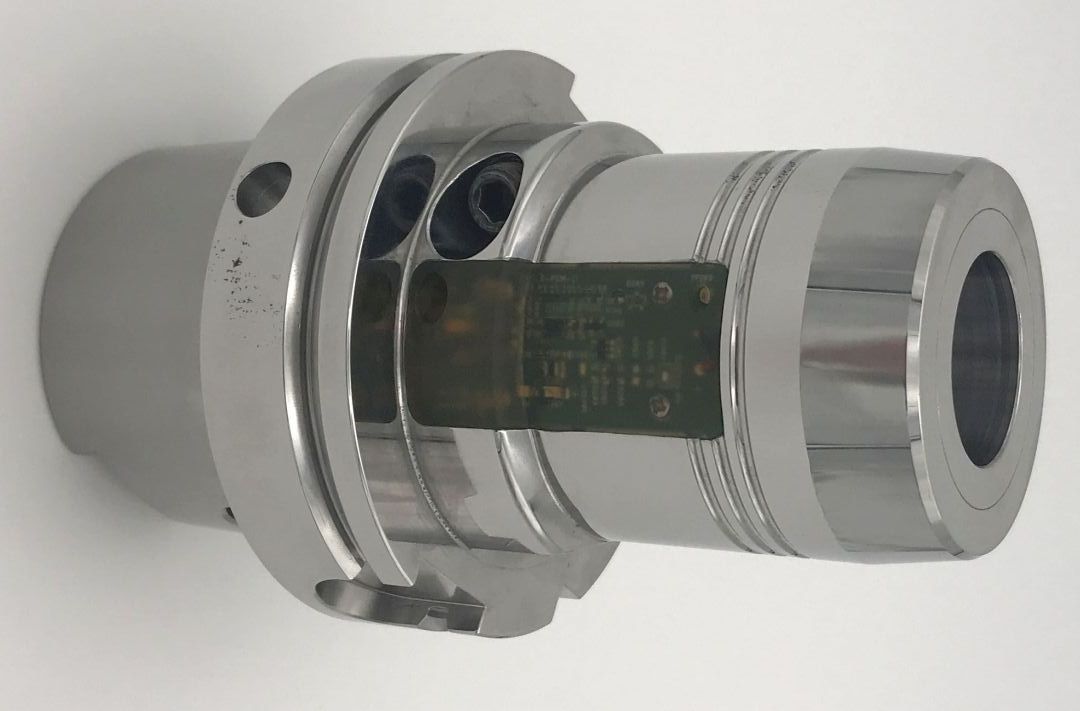
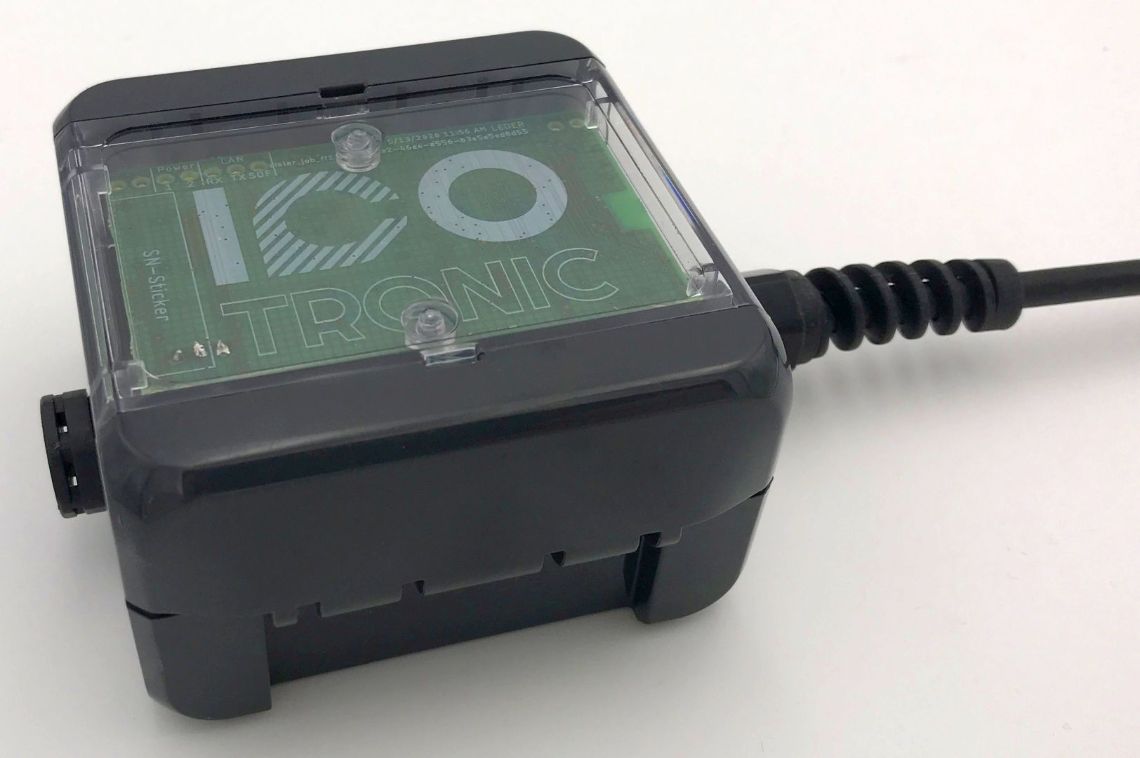 - a sensor node, such as a [Sensory Tool Holder](https://www.mytoolit.com/ICOtronic/):
 ### Setup
1. Connect the power injector
1. to the PCAN adapter, and
2. the power supply unit.
2. Connect the USB connector of the PCAN adapter to your computer.
3. Make sure that your sensor node (SHA/STH/SMH) is connected to a power source. For an STH this usually means that you should check that the battery is (fully) charged.
## Software
### Python
For the currently supported Python versions, please take a look the “Meta” section of the [ICOtronic package on the Python Package Index](https://pypi.org/project/icotronic/) (PyPI). We recommend you use a current 64-bit version of Python.
You can download Python [here](https://www.python.org/downloads). When you install the software, please do not forget to enable the checkbox **“Add Python to PATH”** in the setup window of the installer.
### PCAN Driver
To communicate with the STU you need a driver that works with the PCAN adapter. The text below describes how to install/enable this driver on
- [Linux](#introduction:section:pcan-driver:linux),
- [macOS](#introduction:section:pcan-driver:macos), and
- [Windows](#introduction:section:pcan-driver:windows).
(introduction:section:pcan-driver:linux)=
#### Linux
You need to make sure that your CAN adapter is available via the [SocketCAN](https://en.wikipedia.org/wiki/SocketCAN) interface.
The following steps describe one possible option to configure the CAN interface on ([Fedora](https://getfedora.org), [Ubuntu](https://ubuntu.com)) Linux **manually**.
1. Connect the CAN adapter to the computer that runs Linux (or alternatively a Linux VM)
2. Check the list of available interfaces:
```sh
networkctl list
```
The command output should list the CAN interface with the name `can0`
3. Configure the CAN interface with the following command:
```
sudo ip link set can0 type can bitrate 1000000
```
4. Bring up the CAN interface
```
sudo ip link set can0 up
```
You can also configure the CAN interface **automatically**. For that purpose please store the following text:
```ini
[Unit]
description=Set default CAN adapter speed
[Match]
Name=can*
[CAN]
BitRate=1000000
```
in a file called `/etc/systemd/network/80-can.network`. Afterwards enable `networkd` and reload the configuration with the commands:
```sh
sudo systemctl enable systemd-networkd
sudo systemctl restart systemd-networkd
# Note: The command `networkctl reload` only works in systemd 244 or newer
sudo networkctl reload || sudo systemctl reload systemd-networkd
```
You can check the status of the CAN connection with the command:
```sh
networkctl list
```
If everything works as expected, then the output of the command should look similar to the text below:
```
IDX LINK TYPE OPERATIONAL SETUP
…
7 can0 can carrier configured
```
**Sources**:
- [SocketCAN device on Ubuntu Core](https://askubuntu.com/questions/1082277/socketcan-device-on-ubuntu-core)
- [Question: How can I automatically bring up CAN interface using netplan?](https://github.com/linux-can/can-utils/issues/68#issuecomment-584505426)
- [networkd › systemd › Wiki › ubuntuusers](https://wiki.ubuntuusers.de/systemd/networkd/)
(introduction:section:pcan-driver:macos)=
#### macOS
On macOS you can use the [PCBUSB](https://github.com/mac-can/PCBUSB-Library) library to add support for the PCAN adapter. For more information on how to install this library, please take a look at the issue [“How to install the PCBUSB-Library on Mac”](https://github.com/mac-can/PCBUSB-Library/issues/10#issuecomment-1188682027).
(introduction:section:pcan-driver:windows)=
#### Windows
You can find the download link for the PCAN Windows driver [here](https://www.peak-system.com/quick/DrvSetup). Please make sure that you include the “PCAN-Basic API” when you install the software.
### Setup
1. Connect the power injector
1. to the PCAN adapter, and
2. the power supply unit.
2. Connect the USB connector of the PCAN adapter to your computer.
3. Make sure that your sensor node (SHA/STH/SMH) is connected to a power source. For an STH this usually means that you should check that the battery is (fully) charged.
## Software
### Python
For the currently supported Python versions, please take a look the “Meta” section of the [ICOtronic package on the Python Package Index](https://pypi.org/project/icotronic/) (PyPI). We recommend you use a current 64-bit version of Python.
You can download Python [here](https://www.python.org/downloads). When you install the software, please do not forget to enable the checkbox **“Add Python to PATH”** in the setup window of the installer.
### PCAN Driver
To communicate with the STU you need a driver that works with the PCAN adapter. The text below describes how to install/enable this driver on
- [Linux](#introduction:section:pcan-driver:linux),
- [macOS](#introduction:section:pcan-driver:macos), and
- [Windows](#introduction:section:pcan-driver:windows).
(introduction:section:pcan-driver:linux)=
#### Linux
You need to make sure that your CAN adapter is available via the [SocketCAN](https://en.wikipedia.org/wiki/SocketCAN) interface.
The following steps describe one possible option to configure the CAN interface on ([Fedora](https://getfedora.org), [Ubuntu](https://ubuntu.com)) Linux **manually**.
1. Connect the CAN adapter to the computer that runs Linux (or alternatively a Linux VM)
2. Check the list of available interfaces:
```sh
networkctl list
```
The command output should list the CAN interface with the name `can0`
3. Configure the CAN interface with the following command:
```
sudo ip link set can0 type can bitrate 1000000
```
4. Bring up the CAN interface
```
sudo ip link set can0 up
```
You can also configure the CAN interface **automatically**. For that purpose please store the following text:
```ini
[Unit]
description=Set default CAN adapter speed
[Match]
Name=can*
[CAN]
BitRate=1000000
```
in a file called `/etc/systemd/network/80-can.network`. Afterwards enable `networkd` and reload the configuration with the commands:
```sh
sudo systemctl enable systemd-networkd
sudo systemctl restart systemd-networkd
# Note: The command `networkctl reload` only works in systemd 244 or newer
sudo networkctl reload || sudo systemctl reload systemd-networkd
```
You can check the status of the CAN connection with the command:
```sh
networkctl list
```
If everything works as expected, then the output of the command should look similar to the text below:
```
IDX LINK TYPE OPERATIONAL SETUP
…
7 can0 can carrier configured
```
**Sources**:
- [SocketCAN device on Ubuntu Core](https://askubuntu.com/questions/1082277/socketcan-device-on-ubuntu-core)
- [Question: How can I automatically bring up CAN interface using netplan?](https://github.com/linux-can/can-utils/issues/68#issuecomment-584505426)
- [networkd › systemd › Wiki › ubuntuusers](https://wiki.ubuntuusers.de/systemd/networkd/)
(introduction:section:pcan-driver:macos)=
#### macOS
On macOS you can use the [PCBUSB](https://github.com/mac-can/PCBUSB-Library) library to add support for the PCAN adapter. For more information on how to install this library, please take a look at the issue [“How to install the PCBUSB-Library on Mac”](https://github.com/mac-can/PCBUSB-Library/issues/10#issuecomment-1188682027).
(introduction:section:pcan-driver:windows)=
#### Windows
You can find the download link for the PCAN Windows driver [here](https://www.peak-system.com/quick/DrvSetup). Please make sure that you include the “PCAN-Basic API” when you install the software.